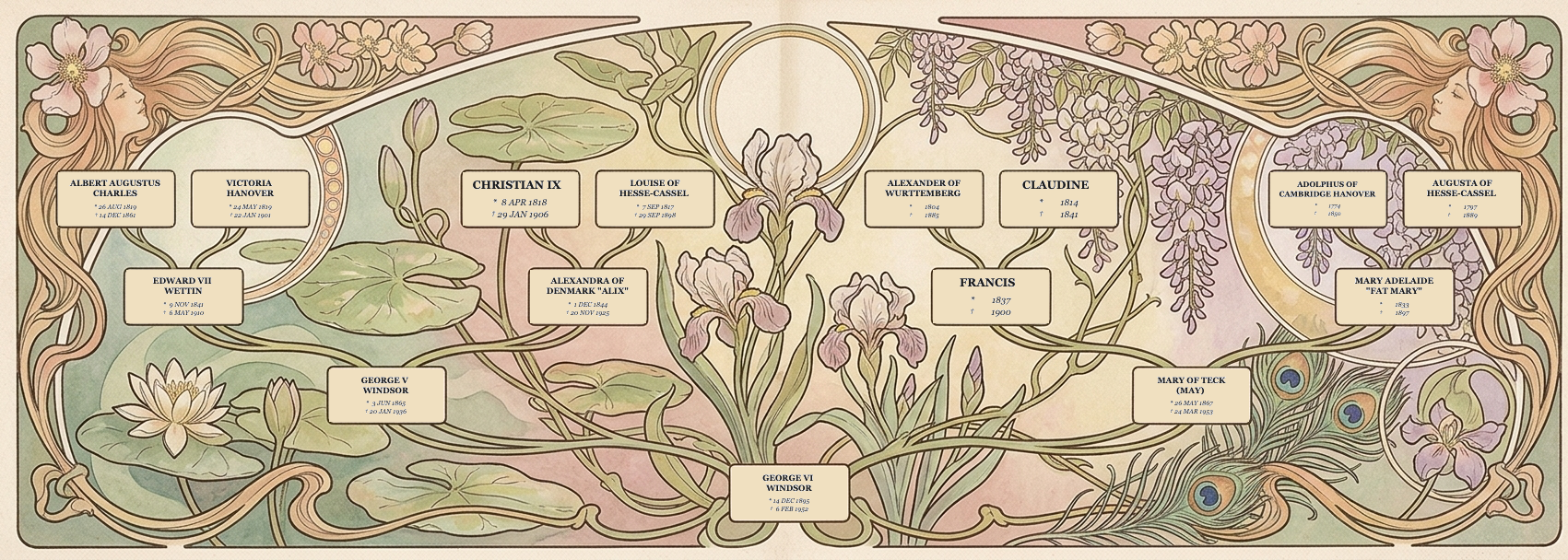
Upload your GEDCOM file or build your family tree from scratch to design elegant, custom family trees.
Five simple steps
Upload your GEDCOM file and choose your starting person, or start building your family tree completely from scratch right on our website.
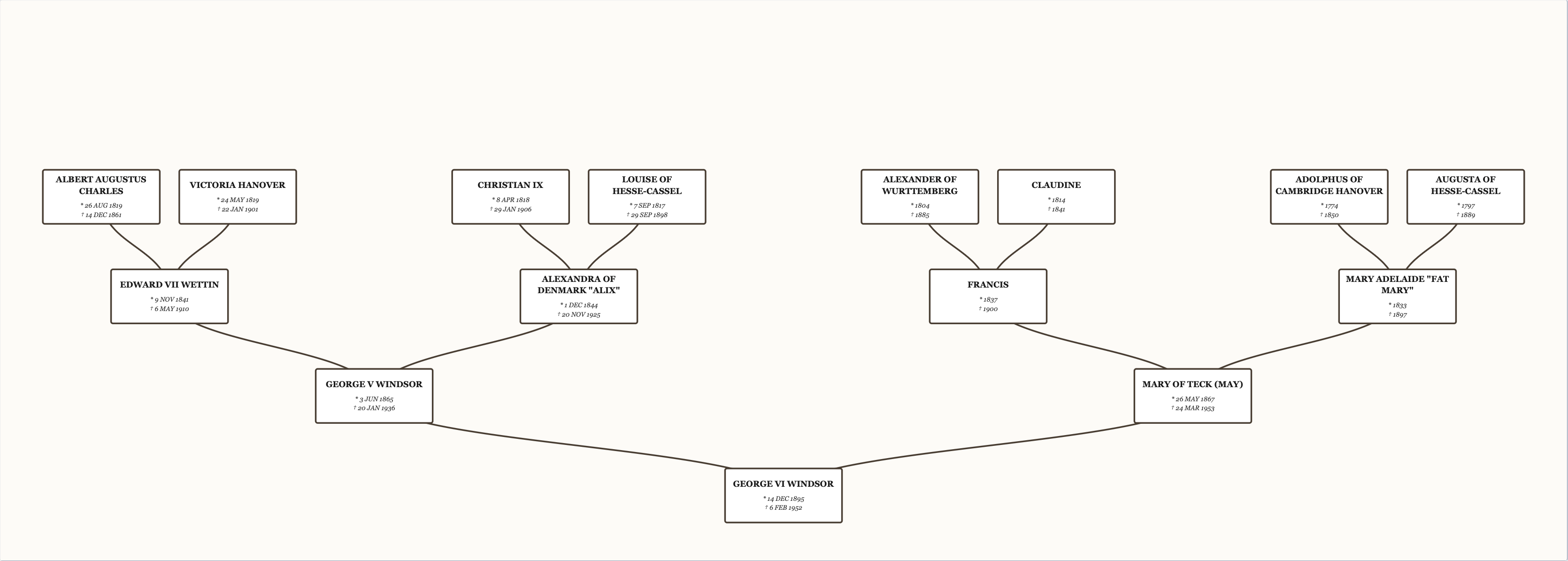
Set your preferences like the number of generations, title, and family tree direction. Decide if you want to display additional data like birth and death dates.
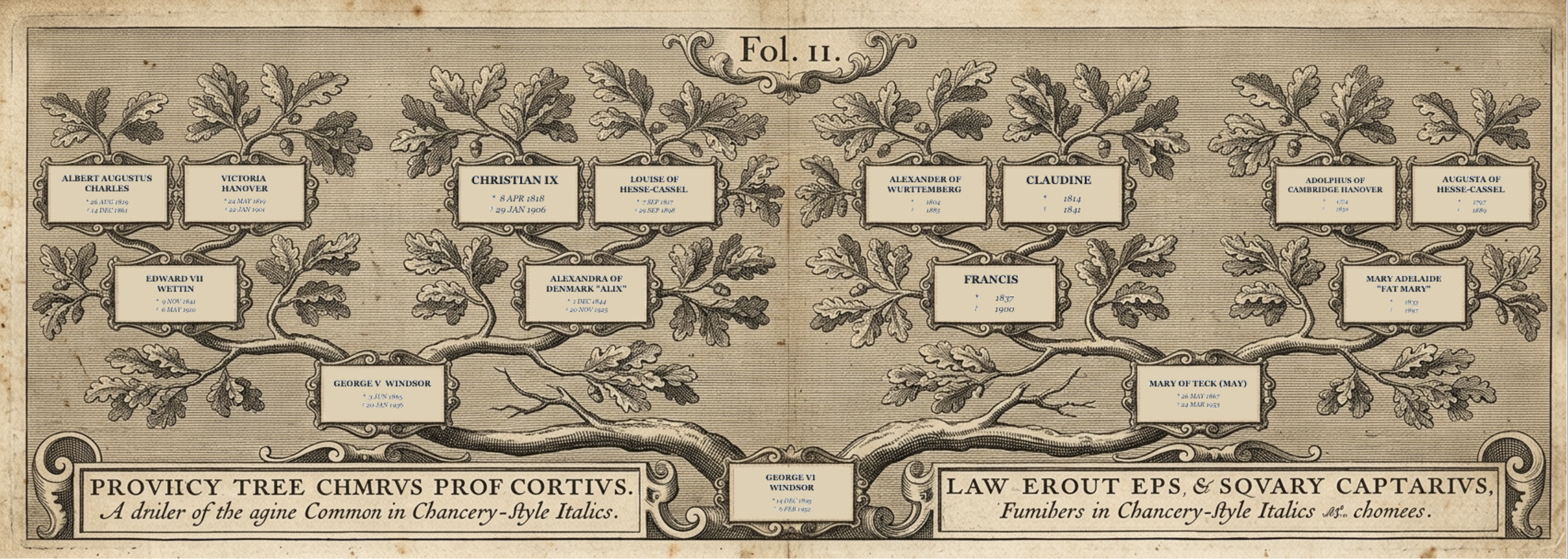
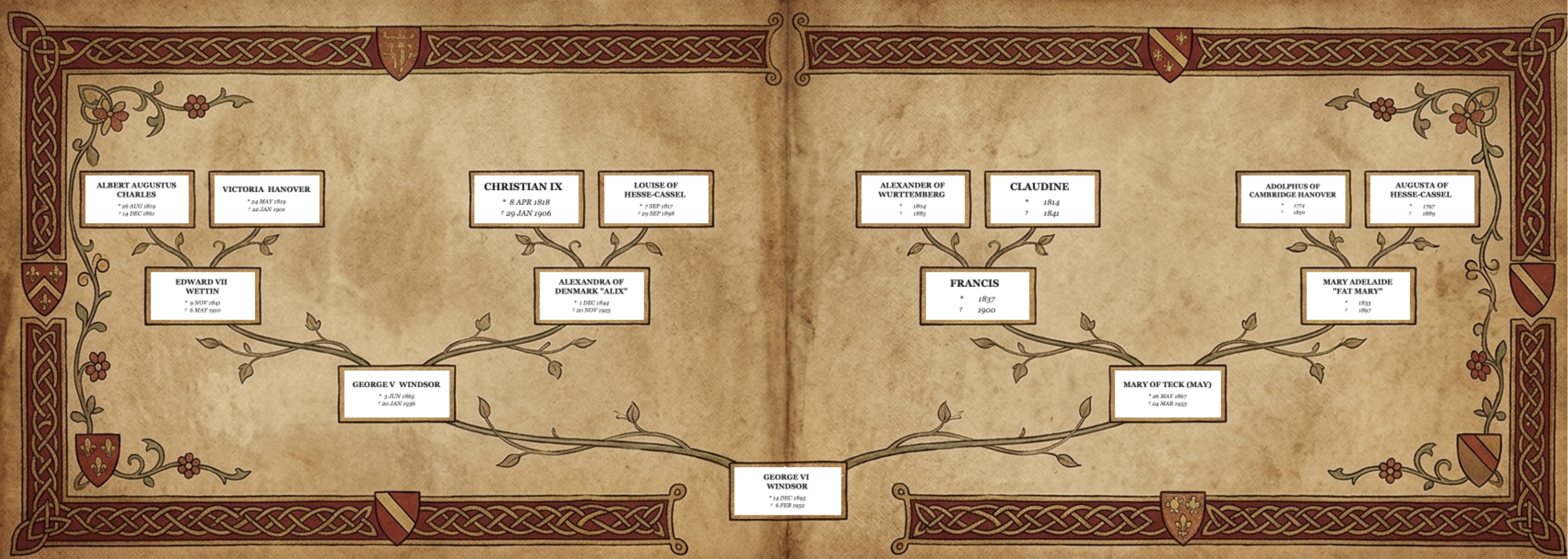
Select your preferred design framework, such as our historic Baroque layout or our Medieval theme.
If you want, add your own final touches to fine-tune the visuals.
Just click the "Generate" button. Our system will instantly process your choices and your high-resolution family tree layout is ready!
Product Benefits
You can make your family tree really special with multiple styles to choose from. Additionally you can add some unique features like your own coat of arms to it.
The program can handle all kinds of complex formations. This means that everything will still look good if your family tree has unusual branches and nothing will get messy or overlap.
We keep your family records safe. We do not send them to companies. Facidra makes sure that all the details are added safely at the end.
We work with Prodigi to print your family trees. Prodigi is a known company that makes high quality prints with great colors and premium paper.
Select your platform below for simple, step-by-step instructions to export your family tree file.
Open your family tree on Ancestry, click your tree name in the top left corner, and select Tree Settings.
On the right side of the settings page, look for the banner and click Export Tree.
Wait a few seconds for the file to generate, then click the green Download GEDCOM button.